
The Dashboard can be described as the bird’s eye view for the management to keep a track on total (1) incidents for various alarm types, (2) false alarms, (3) billed amount, (4) amount received, (4) Aging buckets and outstanding amount, and (5) active and inactive permits. In addition, a user can view the frequently asked questions pertaining to false alarms in the Q/A Session and calculate the cost incurred by the city government for each false alarm call.
Notes:
• The Show/Hide group tree icon on every report displays a tree structure with elements on the X-axis in the bar chart. This facilitates an easy navigation while viewing various reports. For instance, in the tree structure, a user can click the Year and then a corresponding month to view the month’s incident details report.
• The View History drop-down box stores all reports viewed in a single session. This is helpful while viewing reports of different years or months. For instance, if the user has viewed the incident details report for Sep 2007 and April 2009, the system stores these reports in the drop-down box and the user can view them again.
• Click the Export icon to export the displayed report in various formats that include (1) Crystal Report (RPT), (2) .PDF, (3) MS Word, (4) MS Excel (97 – 2000), (5) MS Excel 97 – 2000 (data only), and (6) .RTF.
• In the Go To box, enter the page number and click the Go To icon to view the required page.
Alternatively,
• Click the Navigation icons to browse through the report pages.
• The Navigation icons are disabled, if the report has less than two pages.
• From the Zoom box, select the zoom percentage to zoom in and zoom out the displayed report.
Total Alarms
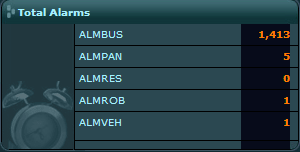
This section displays a report for total number of alarm incidents received by the city police station for various alarm types. The False Alarm Management System (FAMS) retrieves this data from CAD.
As the user clicks the number of incidents for a particular alarm type, the system displays a bar chart report for incidents reported (Y-axis) in the year (X-axis). This is the Main Report and it encloses a bar chart report with the number of incidents (Y-axis) reported for each month (X-axis) of the year.
Note: The user can retrieve the enclosed report by clicking the Year, or the bar, or the incident number for the year in the Main report.
This report enables the user to view the alarm incident details report for each month. The details include (1) Serial number, (2) Service number, (3) Date, (4) Permit holder’s name, and (5) Incident location.
Note: The user can retrieve the incidents details by clicking the Month or the bar or number of incidents for the month.
Total False Alarms

This section highlights the total number of reported false alarm incidents for the previous month, quarter and the last 12 months (excluding current month). Each of these numbers is divided into percentage of false alarms reported by residences (R) and commercial (C) establishments.
As the user clicks the reported false alarm incident number, the system displays a pie-chart comprising of various incident types and the number of incidents for each type in the selected period. This is the Main Report and it encloses a bar chart report for each incident type wherein the number of incidents is placed on the Y-axis and its corresponding month on the X-axis.
Note: The user can retrieve this report by clicking the incident type and number of incidents in the pie chart.
A further drill-down is the false alarm incident details report for each month. The details include (1) Permit number, (2) Permit name, (3) Incident date, (4) Service number, and (5) Disposition.
Note:
• The Show/Hide group tree icon in the Main report of this section displays a tree structure comprising of various alarm types in the pie chart report.
Total Amount Billed History
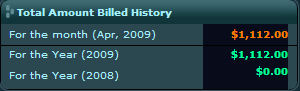
This section in the Dashboard displays the total billed revenue for additional false alarms and permit renewal cost for the previous month, current year and the previous year.
Note: Additional false alarms are the ones that exceed the free false alarms quota for a permit holder. This quota varies for every city and it is a possibility that some cities would not allot any free false alarms.
As the user clicks the amount for a specific period, the system displays a bar chart for the total bill amount (Y-axis) in selected period (X-axis). This is the Main Report and it encloses the bill details for the selected period. The details include (1) Permit number, (2) Permit Name, (3) Bill number, (4) Bill date, and (5) Bill amount.
Total Amount Received History
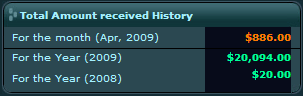
This section displays the total revenue generated by PMAM and the City in the previous month, current year and the previous year.
As the user clicks the amount for a specific period, the system displays a bar chart for the total receipt amount (Y-axis) in selected period (X-axis). This is the Main Report and it encloses the receipt details for the selected period. The details include (1) Permit number, (2) Permit Name, (3) Receipt date, and (4) Amount
Aging Buckets and Outstanding
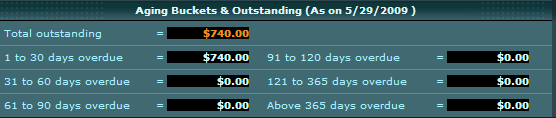
This section displays the total outstanding amount to be collected from permit holders who have exceeded the bill due date by one day to 365 days or beyond from the current date. Depending upon the due date, the system places the total due amount in aging buckets that range from 1 — 30 — 60 — 90 — 120 — 365 and greater than 365 days. For instance, total amount for all unpaid bills exceeding due dates by one to 30 days would be placed in the 1 — 30 days aging bucket.
As the user clicks the total outstanding amount against a specific bucket, the system displays the bill outstanding report details include (1) Permit number, (2) Permit name, (3) Bill number, (4) Bill due date, (5) Bill amount, (6) Receipt, and (7) Outstanding amount. This report is generated in the .PDF format.
Active and Inactive Permits

This section displays the total number of permits in the system, which is the sum of total active and inactive permits.
Notes:
• Active Permits: The false alarm permit issued against a permit holder, an individual or an organization.
• Inactive Permits: Location where the alarm is installed, but the false alarm permit is not bought or registered. For inactive permit holders, the system creates a dummy permit number and the city considers these locations as non-compliant locations.
As the user clicks the total number of permits, the system displays the permit details, which includes (1) Permit number, (3) Permit name, (3) Address, (4) Phone, (5) Issue date, and (6) Expiry date. The report is generated in the .PDF format.
Cost per Call
This section enables the user to calculate the cost incurred by the city to attend X number of false alarm calls. This data varies for every city.
Perform the following step to calculate the cost per call for a city:
• In the Cost per Call box, enter the number of encountered false alarms and click Calculate to display the cost incurred by the city.
Q /A Session
This section answers the frequently asked questions related to the reported false alarms data. These questions include the following:
i. Who have caused 25% percent of the alarms?
ii. Who have caused 50% percent of the alarms?
iii. Who have caused 75% percent of the alarms?
iv. Business that have caused 50% of the alarms.
v. Homes that have caused 50% of the alarms.
A user can click on each question to view the permit details that include (1) Permit number, (2) Permit Name, (3) Permit telephone number, and (4) Total alarms.
Copyright 2000-2009 City of Houston Alarm Program