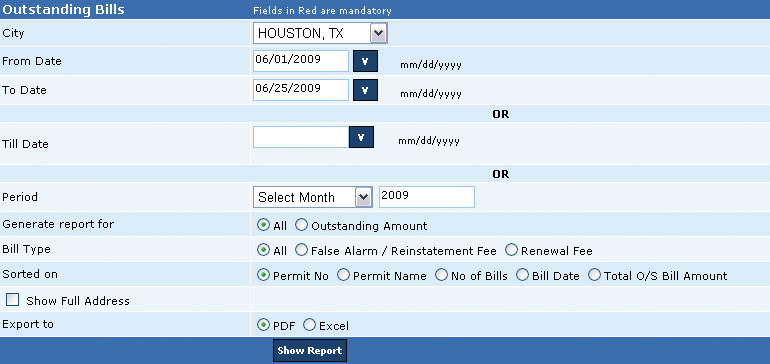
This report summarizes the total outstanding balance for false alarm reinstatement, or renewal fees, or both against each bill number in the specified period. A user can generate this report for a selected date range, outstanding balance till the specified date, and for a selected month and year.
The system facilitates the user to view all charged false alarm incidents in the pending invoice for the renewal fees in the report. Furthermore, the user can sort the report on the basis of permit number, name, number of bills, bill Date, and total outstanding bill amount. This feature presents the user a summarized total outstanding balance as per the selected sort criterion. For example, the user can view the total outstanding balance for each permit number.
The various details in the report include (1) Permit number, (2) Permit name, (3) Telephone number, (4) Address, (5) Bill number, (6) Bill date, (7) Bill amount, (8) Bill adjustments, (9) Bill cancellation details, (10) Receipt details, (11) Receipt adjustments, (12) Total bill amount, bill adjustment, bill cancellation amount, receipts, receipts adjustment, and (13) Total outstanding amount for each permit or bill.
Additionally, an abstract for the report is displayed at the end of the report, which includes (1) Total number of permits, (2) Total false alarm pending, (3) Total renewal amount pending, and (4) Total amount pending. This report can be generated in .PDF and .XSL format.
Calculation:
• Total Outstanding Balance = Total Bill Amount – (Total Cancellation amount + Total Receipt Amount + Total Receipt Adjustment) + Total Bill Adjustment.
• Total Amount Pending = Total False Alarm Pending + Total Renewal Amount Pending.
Perform the following steps to generate the outstanding bill report:
1. From the City drop-down box, select the city.
2. In the From Date box, enter the starting range of the period.
3. In the To Date box, enter the ending range of the period.
Alternatively,
3. In the Till Date box, enter the end date till the report needs to be generated.
Alternatively,
3. In the Period section, select a month from the Month drop-down box, and enter the required year in the adjacent textbox.
4. In the Generate report for section, click Outstanding Amount.
5. In the Bill Type section, do the following:
a. Click the All button to display outstanding balance for both false alarm or reinstatement fees and renewal fees.
b. Click the False Alarm / Reinstatement Fee button to display outstanding balance for false alarm or reinstatement fees.
c. Click the Renewal Fee button to display outstanding balance renewal fees.
6. In the Sorted on section, select the basis to sort the report.
7. Select the Show Full Address check box to display the permit holder’s address.
8. Select the Show Notes check box to view notes against each permit number.
Note: If the user selects the Show Notes check box, the report is generated as a Web page and the user needs to click the Permit Number to view notes against the permit.
9. In the Export to section do the following:
a. Click PDF and then click the Show Report button to generate the report in .PDF format.
b. Click Excel and then click the Show Report button to generate the report in .PDF format.
Copyright 2000-2009 City of Houston Alarm Program