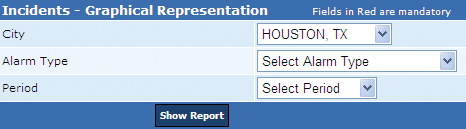
This report is a bar chart graph representation for false alarm incidents reported in the selected period (Current month, quarter and year). A user can generate this report for a selected alarm type that includes burglary, robbery, panic/holdup, and others.
Current Month Report: Displays the number of reported incidents (X-axis) in the current month (Y-axis). This is the Main report and encloses a bar chart report with number of incidents (Y-axis) reported in days of the week (X-axis) for the month.
Note: The user can retrieve this report by clicking the Month, or the bar, or the incident number for the month in the Main report.
This report enables the user to view the alarm incident details report for each day. The details include (1) Permit number, (2) Permit name, (3) Incident date, (4) Service number, and (5) Disposition.
Current Quarter: Displays number of reported incidents (X-axis) in each month of the current quarter (Y-axis). This is the Main report and as the user clicks the Month, or the bar, or the incident number for the month, the system displays a bar chart report with number of incidents (Y-axis) reported in days of the week (X-axis) for the month. With this a user can view the alarm incident details report for each day. The details include (1) Permit number, (2) Permit name, (3) Incident date, (4) Service number, and (5) Disposition.
Note: The user can retrieve alarm incident details report by clicking the day of the week, or the bar, or the incident number for the day.
Current Year: Displays number of reported incidents (X-axis) in each month of the current year (Y-axis). This is the Main report and as the user clicks the Month, or the bar, or the incident number for the month, the system displays a bar chart report with number of incidents (Y-axis) reported in days of the week (X-axis) for the selected month. Using this report a user can view the alarm incident details report for each day. The details include (1) Permit number, (2) Permit name, (3) Incident date, (4) Service number, and (5) Disposition.
Notes:
• The Show/Hide group tree icon on every report displays a tree structure with period elements in the bar chart. This facilitates an easy navigation while viewing various reports. For instance, in the tree structure, a user can click the month and then a corresponding day to view the incident details report.
• The View History drop-down box stores all reports viewed in a single session. This is helpful while viewing reports of different years or months. For instance, if the user has viewed the incident details report for Sep 2007 and April 2009, the system stores these reports in the View History drop-down box for the user to view again.
• Click the Export icon to export the displayed report in various formats that include (1) Crystal Report (RPT), (2) .PDF, (3) MS Word, (4) MS Excel (97 – 2000), (5) MS Excel 97 – 2000 (data only), and (6) .RTF.
• In the Go To box, enter the page number and click the Go To icon to view the required page.
Alternatively,
• Click the Navigation icons to browse through the report pages.
• The Navigation icons are disabled, if the report has less than two pages.
• From the Zoom box, select the zoom percentage to zoom in and zoom out the displayed report
.
Perform the following steps to generate the incidents – week wise report:
1. From the City drop-down box, select the city.
2. From the Alarm Type drop-down box, select the alarm type.
3. From the Period drop-down box, select the period and click Show Report to generate the Incidents – Week Wise report.
Related Links
Copyright 2000-2009 City of Houston Alarm Program